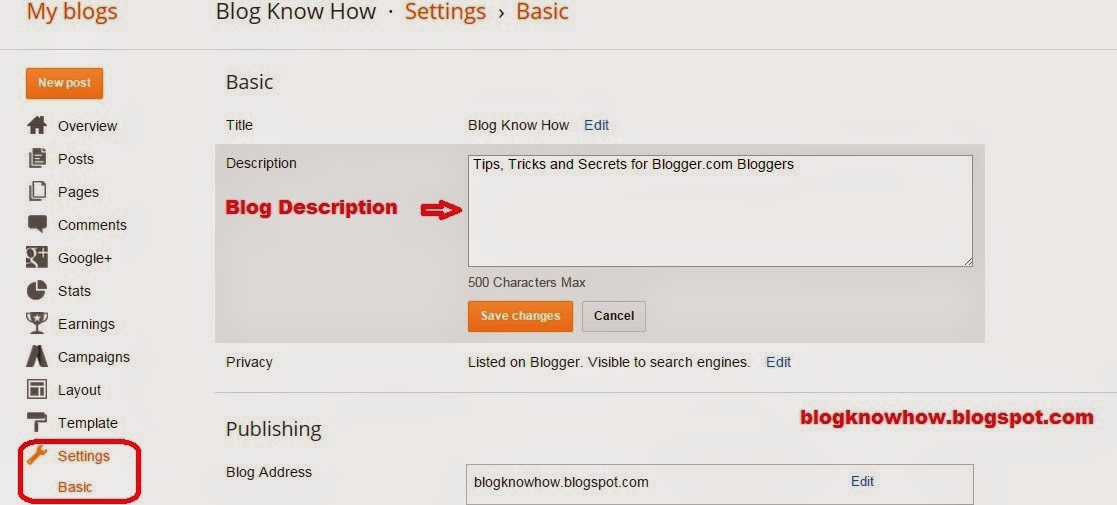
In today's Blogger tutorial I show you step-by-step how to change the font style and font size of the blog description. The blog description is the tag line under the Blog Name that appears in the header section of your Blogger blog. If you do not yet have the blog description for your Blogger blog enabled follow these steps:
- From your Blogger dashboard select "Settings" which is located at the bottom of the left menu
- Then choose "Basic"
- Type your blog description in the description box located below the blog name. (Make sure you choose something that describes what your blog is about)
- Save your changes.
- Choose View Blog to see the blog description you added now in your blog header.
The main reason you might want to change the font of the default blog description is because the blog description in default Blogger templates is on the small side. Just by increasing it to 16px or even 20px will make a difference. Also you might want to customize the blog description to achieve a particular look. This tutorial will help you customize the blog description to your own individual requirements.
This tutorial assumes you are using a default Blogger template such as Simple or Awesome. If you are using a custom template the template code may be different, however, these instructions should still work in most cases.
Instructions to Change the Font Size and Style of the Blog Description
Unfortunately, the only modification to the blog description Blogger currently allows using the Template Designer is
changes to the font color. Changes to the font style and font size of the blog description therefore require a manual insert of a little bit of CSS code into your Blogger template. Follow these steps to change the text style and size in Blogger:
- Log in to Blogger and go to the dashboard of your blog.
- From the left hand menu select "Template"
- On the Templates Page select "Edit HTML" under Live Blog.
- From the top menu select "Jump to Widget" and then "Header 1" from the drop down menu.
- Find this line:
<b:widget id='Header1' locked='true' title='Your Blog Name (Header)' type='Header'>...</b:widget>
- Now click on the dots that appear between type='Header'> and </b:widget> to expand the section.
- You should now see the following code
 <b:section class='header' id='header' maxwidgets='1' showaddelement='no'>
        <b:widget id='Header1' locked='true' title='Your Blog Name (Header)' type='Header'>

          <b:includable id='main'>

          <b:includable id='description'>...<b:includable>

          <b:includable id='title'>

</b:includable>

        </b:widget>

      </b:section>
- Click on the dots between <b:includable id='description'> and </b:includable>
- Now you will presented with this code:
 <b:includable id='description'>

  <div class='descriptionwrapper'>

    <p class='description'><span><data:description/></span></p>
  </div>
- Find this line:
<p class='description'><span><data:description/></span></p>
- Now to change the blog description to a different font eg default to verdana change the code to the following
<p class='description' style='font-family: verdana;'><span><data:description/></span></p>
- To change the blog description font style to italics change the code to the following
<p class='description' style='font-family: verdana; font-style: italic;'><span><data:description/></span></p>
- To change the font style of your blog description from the default capitalized case to uppercase change the code as follows. Note for lower case use: text-transform: lowercase;
<p class='description' style='font-family: verdana; font-style: italic; text-transform: uppercase;'><span><data:description/></span></p>
- To increase the size of the blog description font from 12px to 16px for example change the code to the following
<p class='description' style='font-family: verdana; font-size: 16px;'><span><data:description/></span></p>
- Putting all the changes together from 11 to 14 would need the following code change
<p class='description' style='font-family: verdana; font-style: italic; text-transform: uppercase; font-size: 16px;'><span><data:description/></span></p>